
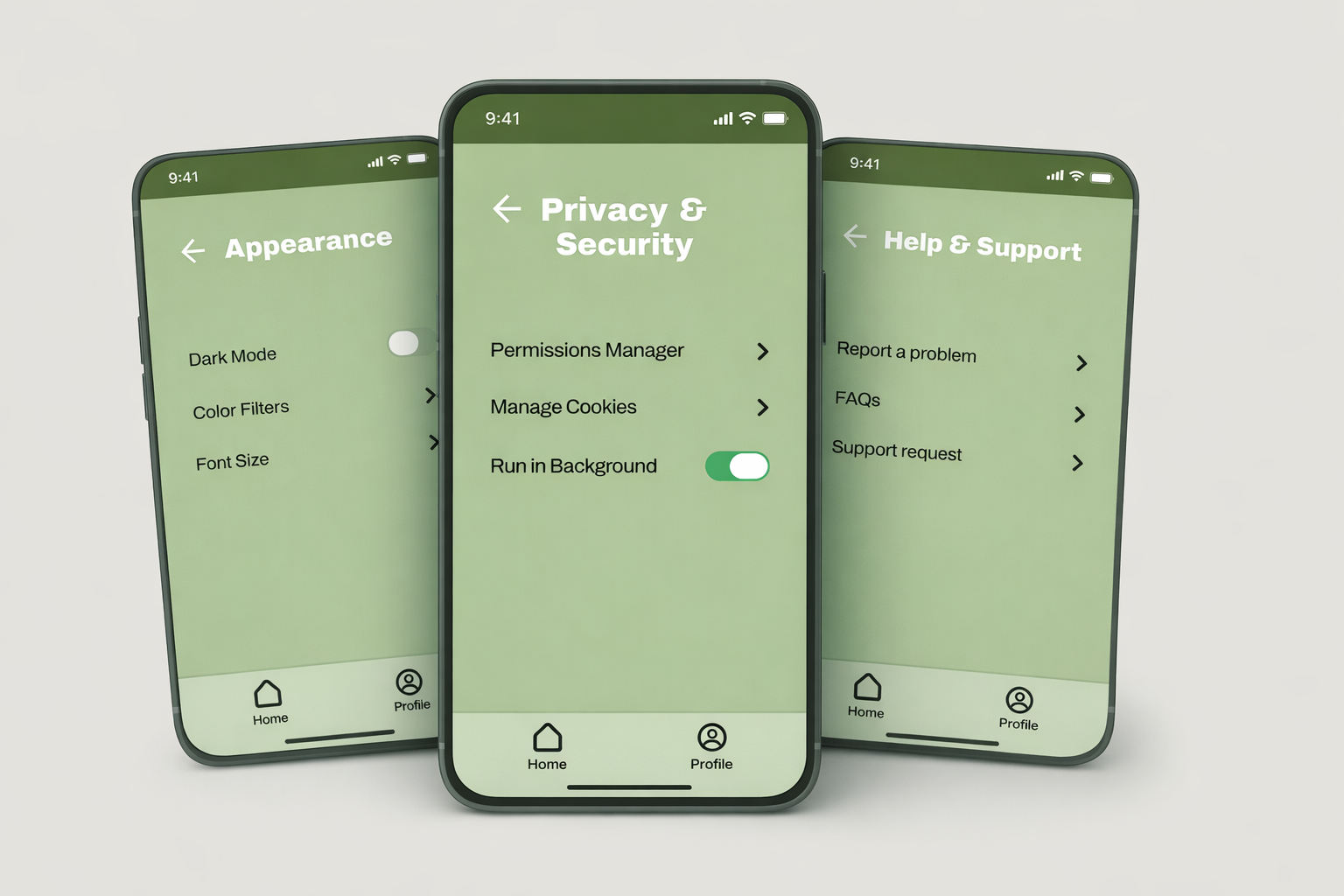
Sheltr - Accessibility & Settings System
Sheltr is a safety-focused mobile app designed to help users access critical information quickly and confidently. This case study highlights how I designed and prototyped a complete accessibility settings system to ensure the app remains usable, readable, and predictable under stress — for all users.
Overview
Accessibility in a safety app directly impacts usability under stress. I designed and prototyped a structured accessibility system that allows users to adjust visibility, text size, and viewing modes quickly and predictably. While built as a high-fidelity prototype, the system models real interaction behavior and would undergo formal accessibility validation during development.
Project Type
Accessibility System Prototype for a mobile safety application.
Audience
Users navigating high-stress situations who require clear, fast interaction.
Focus Area
Accessibility, interaction consistency, and scalable settings architecture.
Scope
Settings hierarchy, toggle behavior, viewing modes, and prototype state modeling.
Problem Statement
Accessibility systems often fail when users need them most
In many mobile applications, accessibility controls are buried, inconsistent, or overly technical. For a safety-focused product like Sheltr, that approach creates risk. Users navigating high-stress situations need immediate clarity — not confusing labels, unpredictable toggle behavior, or fragmented settings architecture. The challenge was to design an accessibility system that feels intuitive, structured, and reliable at every level.
Goals & Success Criteria
Defining what success meant for this system
Success was not defined by adding features, but by reducing friction. The goal was to create an accessibility system that improves clarity under stress, minimizes cognitive load, and maintains consistent interaction behavior across all settings levels.
Evaluation criteria Mobile Experience | Accessibility | Usability | Clarity
Success meant users could adjust settings quickly and confidently without confusion.
Success was measured by task clarity, predictable toggle behavior, and the overall simplicity of the settings hierarchy. Every decision was evaluated against whether it reduced hesitation or introduced unnecessary complexity.
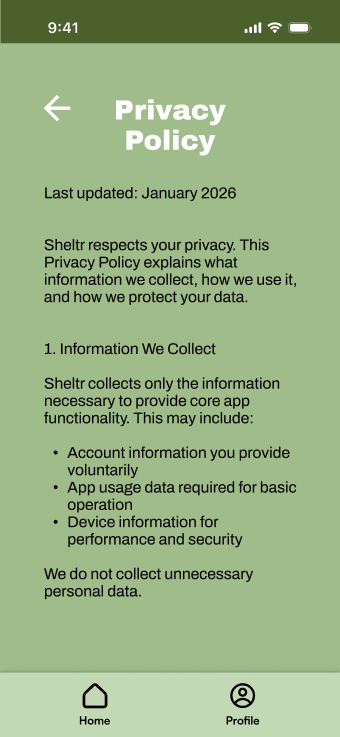
Clarity
Each setting needed to be immediately understandable. Users shouldn’t have to interpret labels or wonder what will happen when they adjust a control.
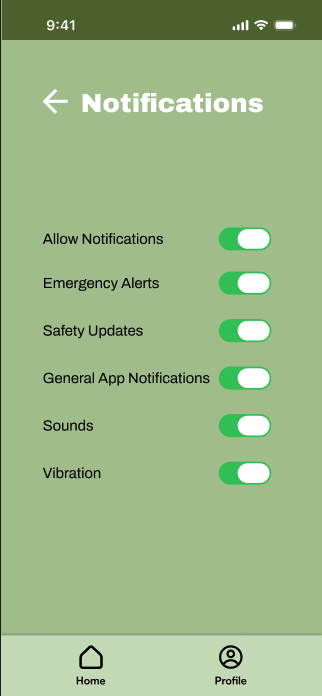
Consistency
Toggle behavior and navigation had to work the same way throughout the system. When a user changes a setting, the outcome should feel reliable and predictable.
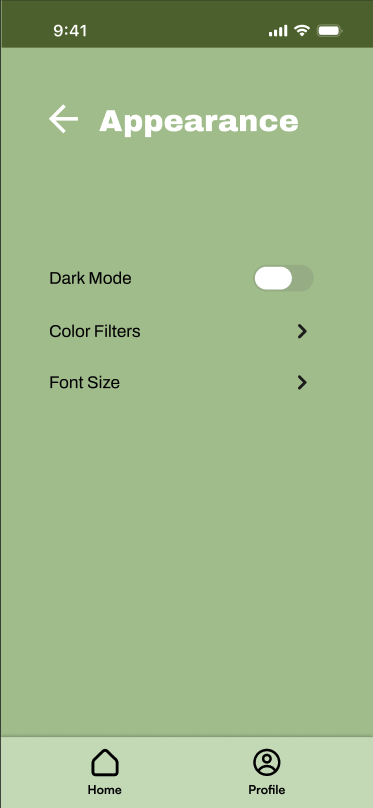
Simplicity
The structure needed to remain organized and easy to navigate. Grouping related controls helped reduce cognitive load, especially in high-stress situations.
Research & Discovery
Understanding accessibility risks early
A focused review helped identify usability risks, clarify accessibility priorities, and guide early system decisions.
Key Insights
What shaped the design direction
- Accessibility controls are often buried or treated as secondary features
- Technical language creates hesitation and confusion
- Too many settings at once increases cognitive load
- Predictable interaction patterns reduce user stress
Methods
How the direction was informed
- Reviewed how other mobile apps structure accessibility settings
- Looked at platform accessibility guidelines (iOS / Android)
- Studied common patterns in mobile settings menus
- Tested early prototypes to see what felt clear vs confusing
Key Decisions
Key decisions that shaped the accessibility system
This system wasn’t built by adding more controls. It focused on organizing settings in a way that makes sense and making sure they work the same way throughout. The decisions below shaped how the accessibility settings actually function.
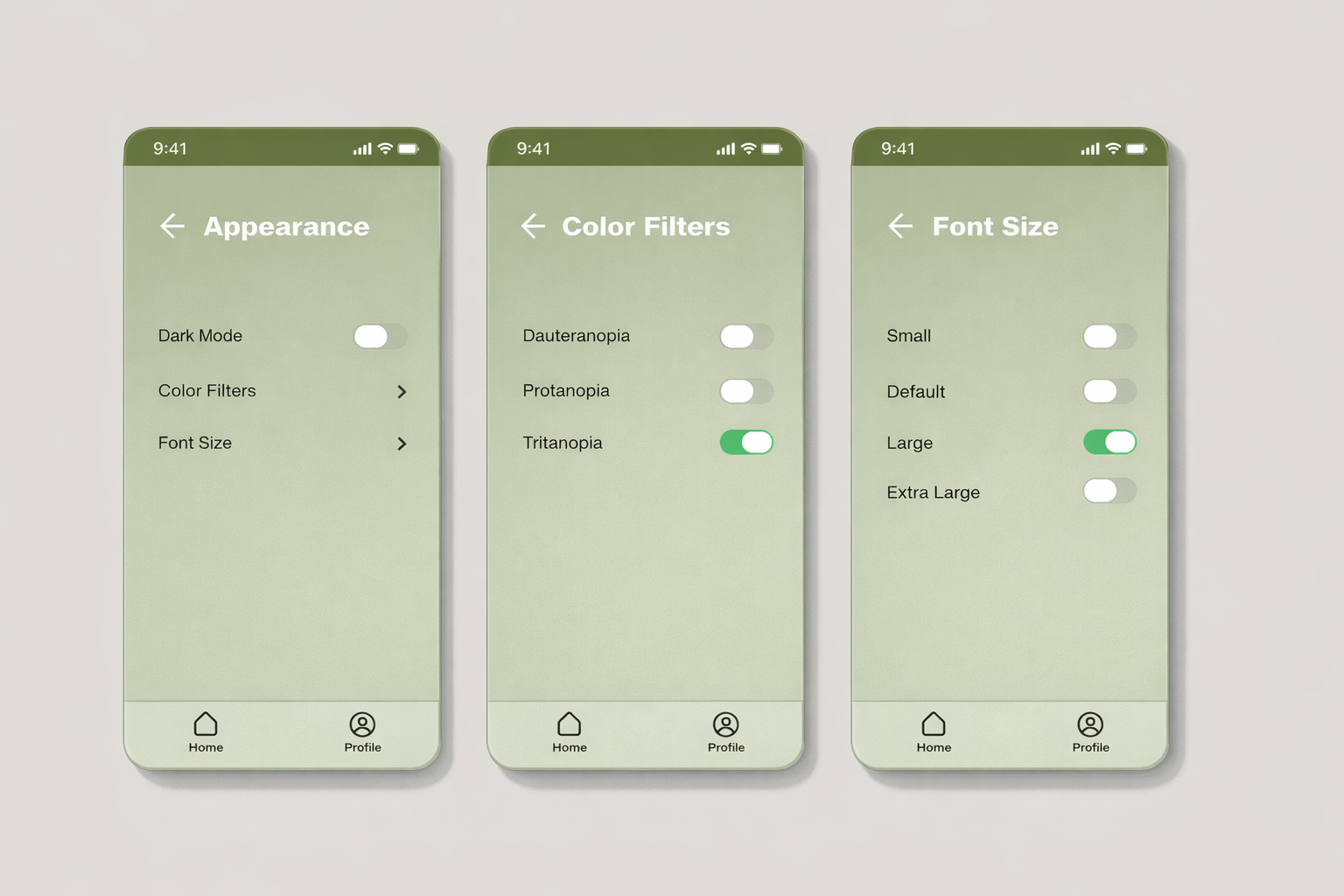
Clear structure
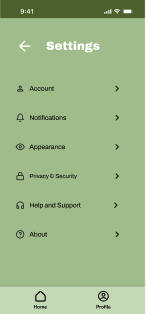
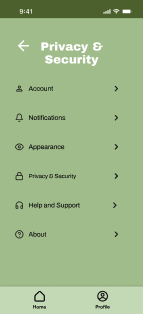
Settings were broken into clear sections instead of one long list. This made the system easier to scan and helped users find what they needed without digging.
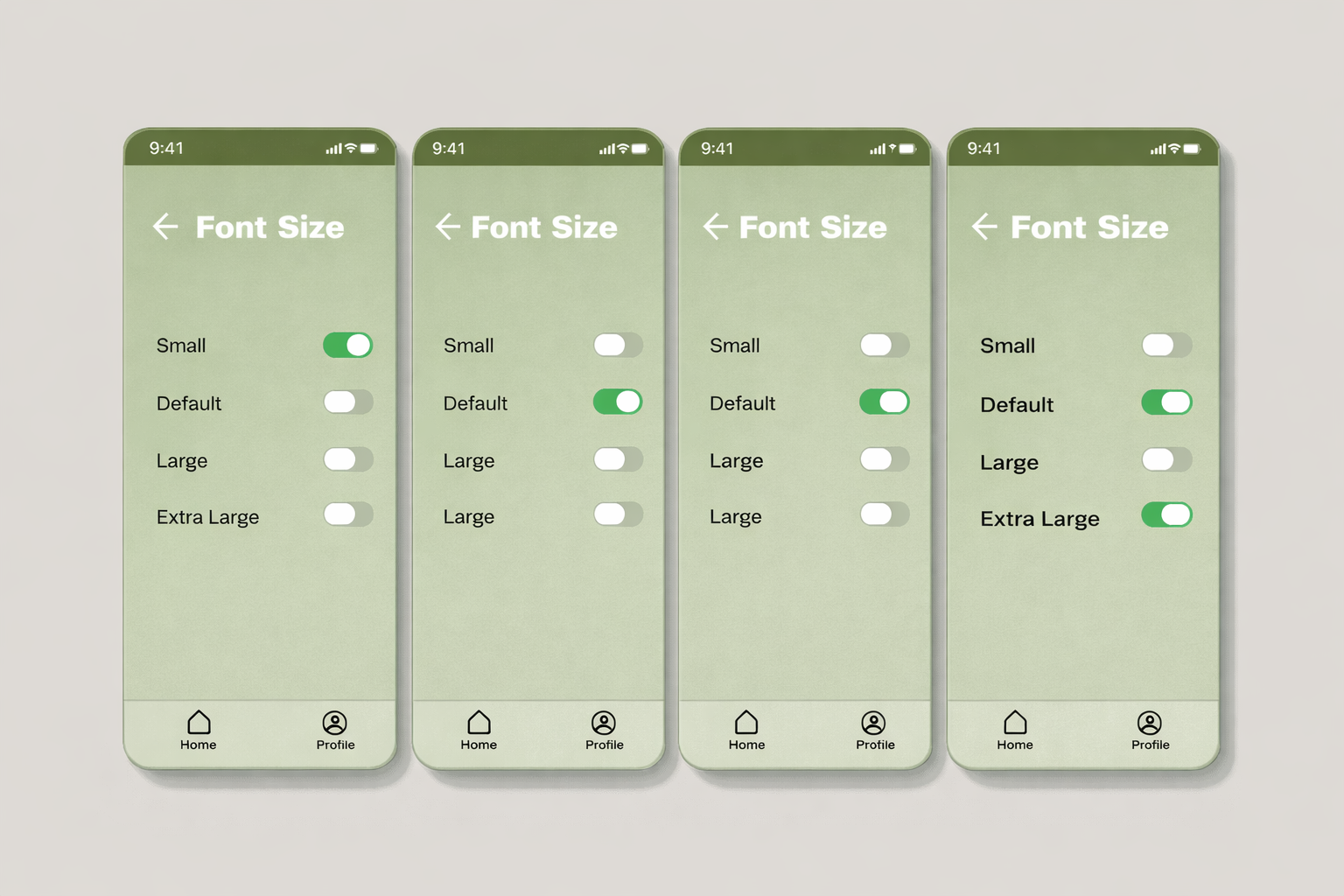
Consistent toggles
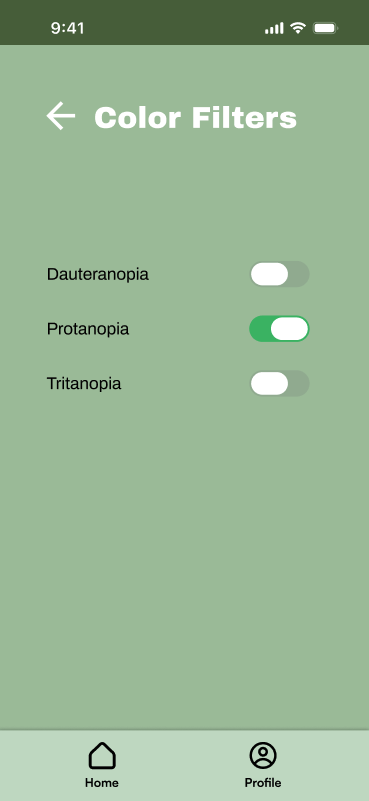
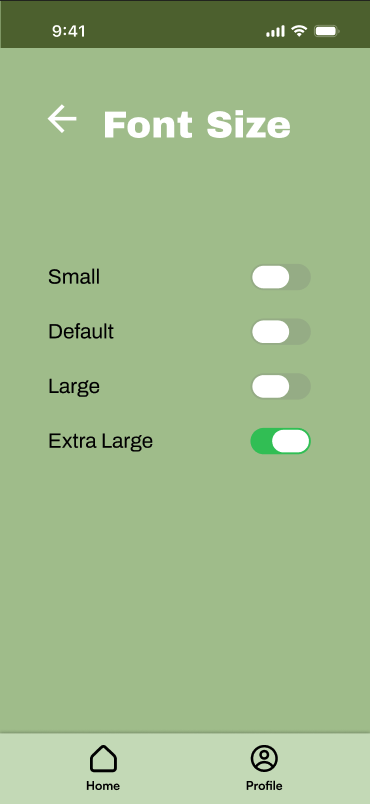
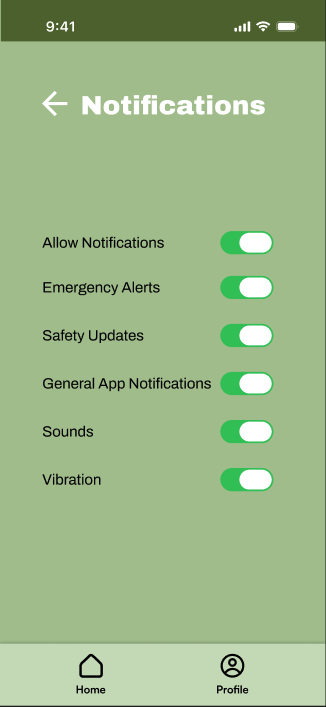
Every toggle behaves the same way across the system. When something is turned on or off, the result is predictable and doesn’t change from screen to screen.
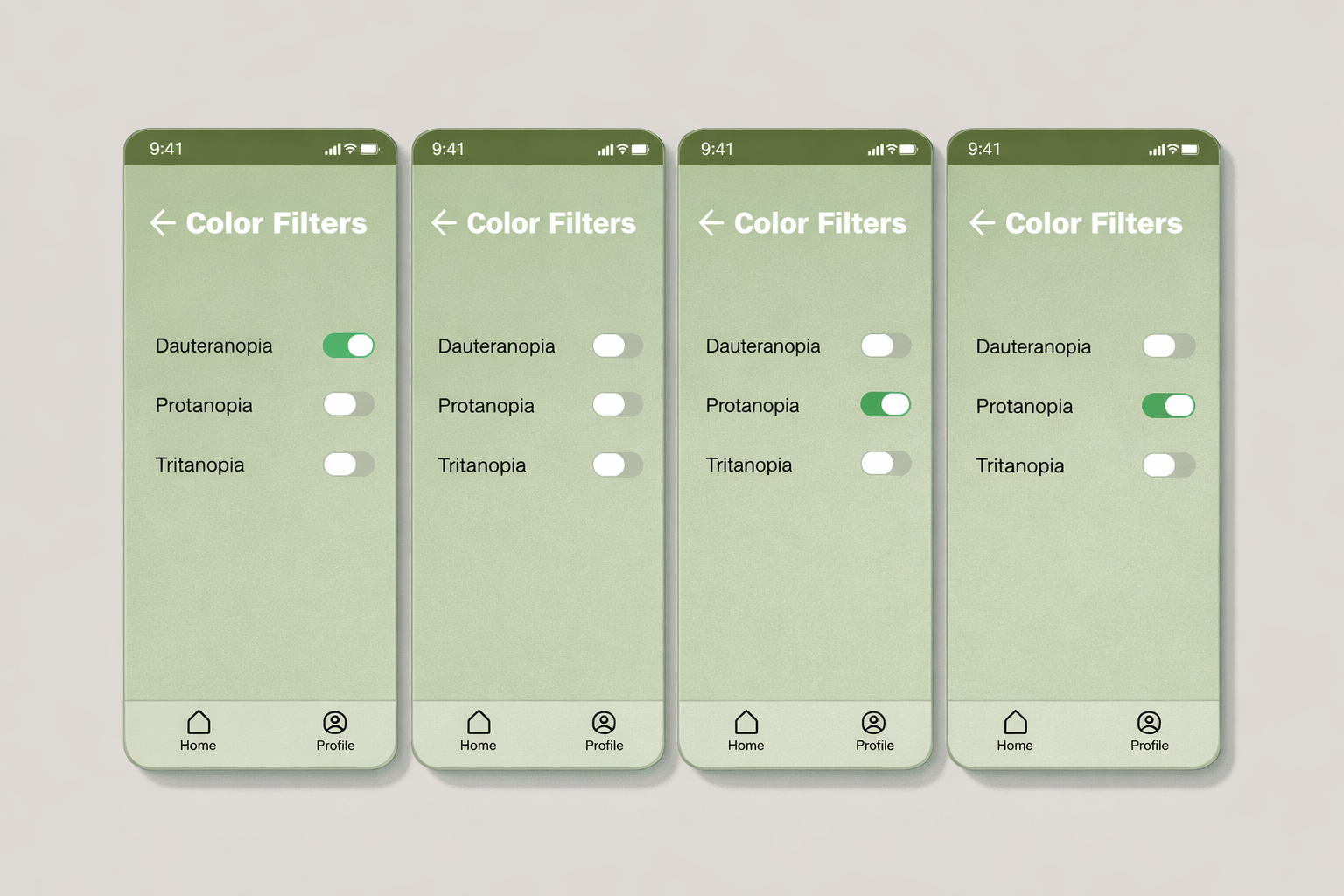
Filters separated
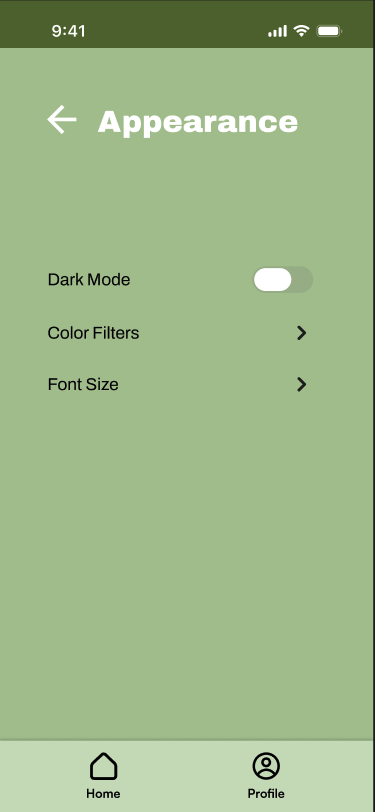
Color filters and viewing modes live in their own space instead of mixing with basic settings. This keeps the main accessibility screen simple and easier to understand.
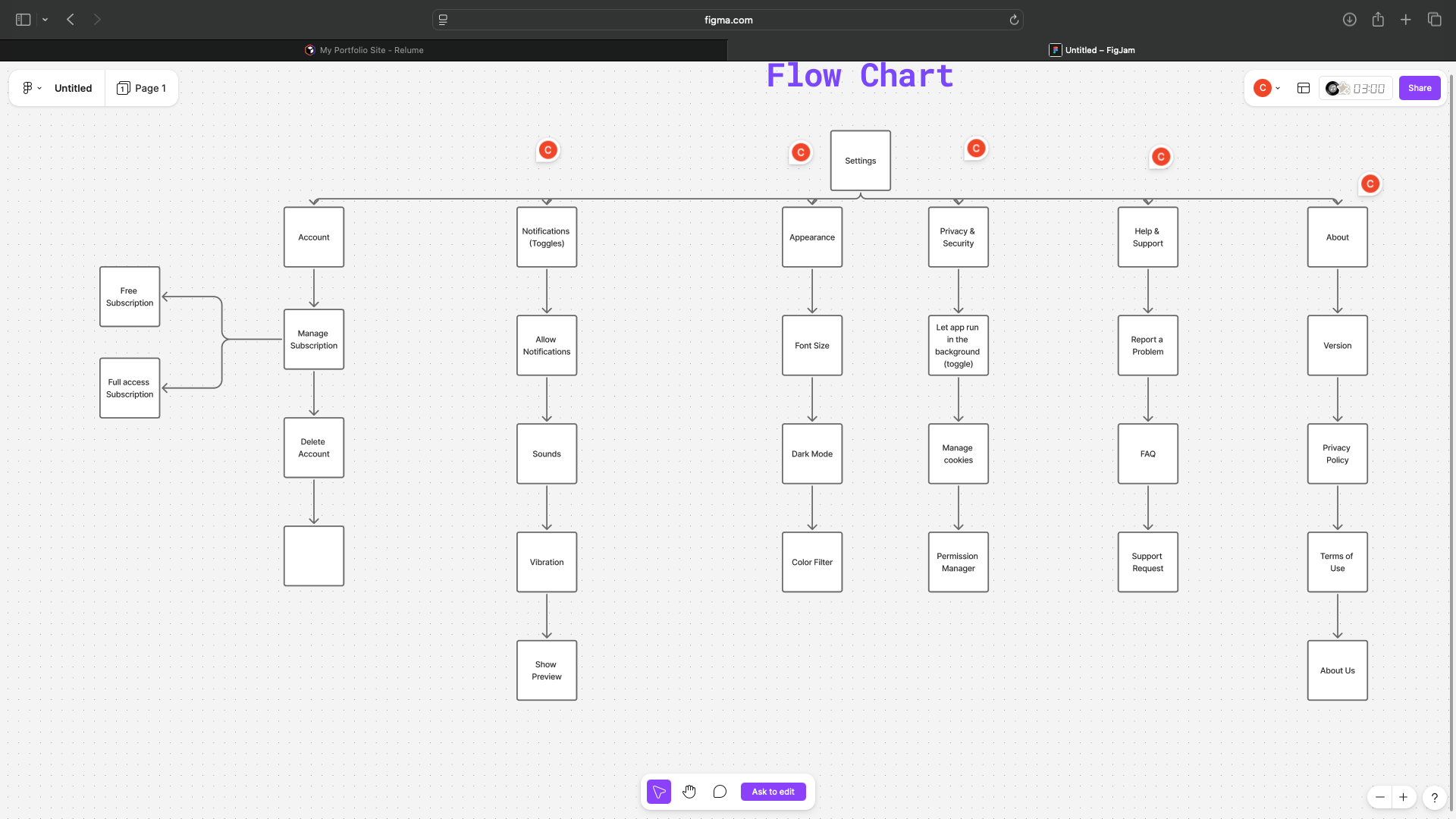
Wireframes & Iterations
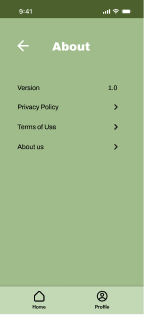
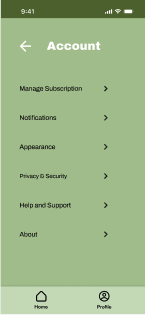
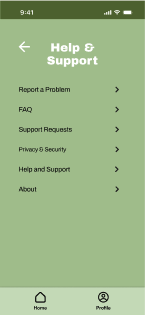
From rough wireframes to refined screens, each iteration moved Sheltr closer to a more usable and trustworthy product.
Final Design
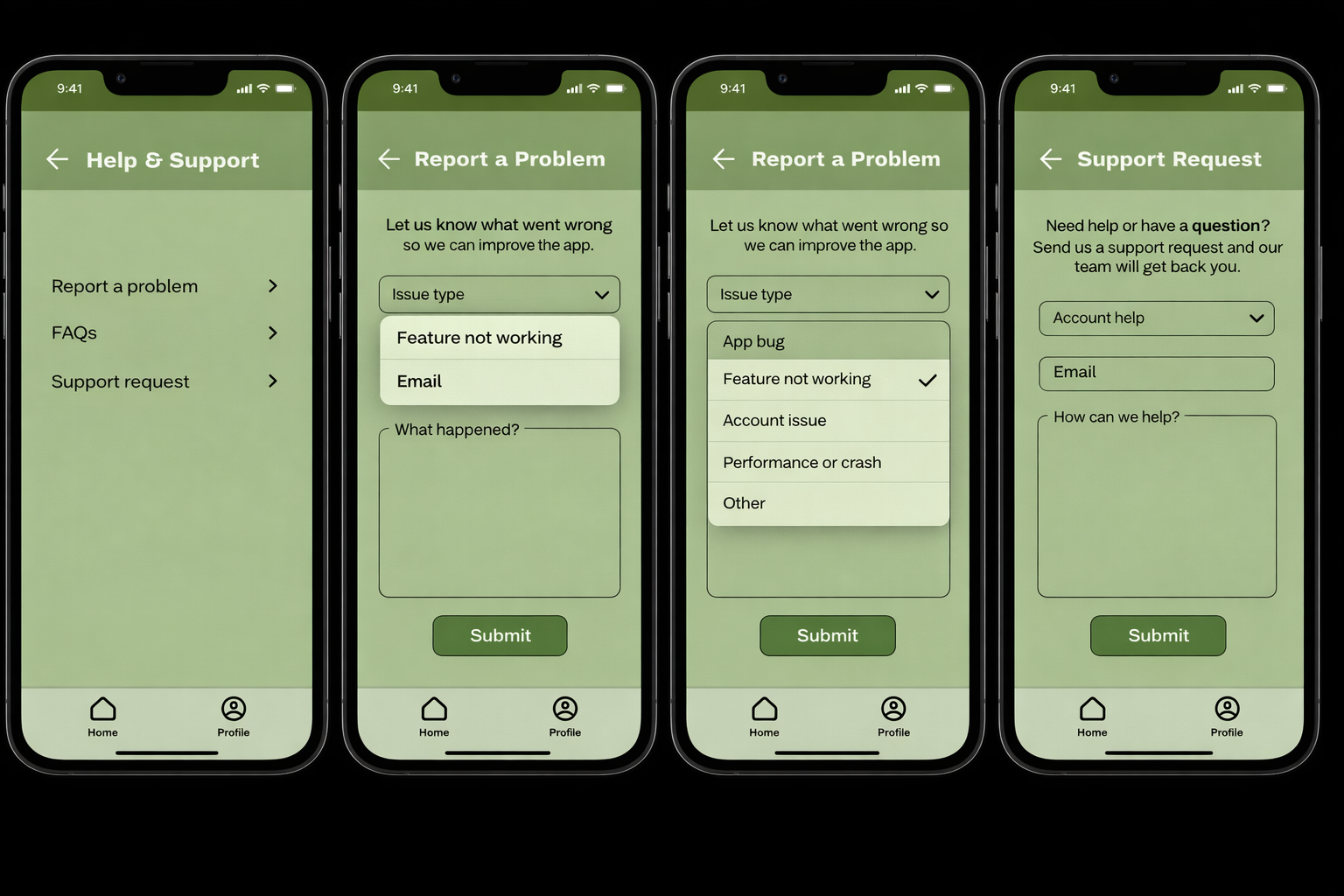
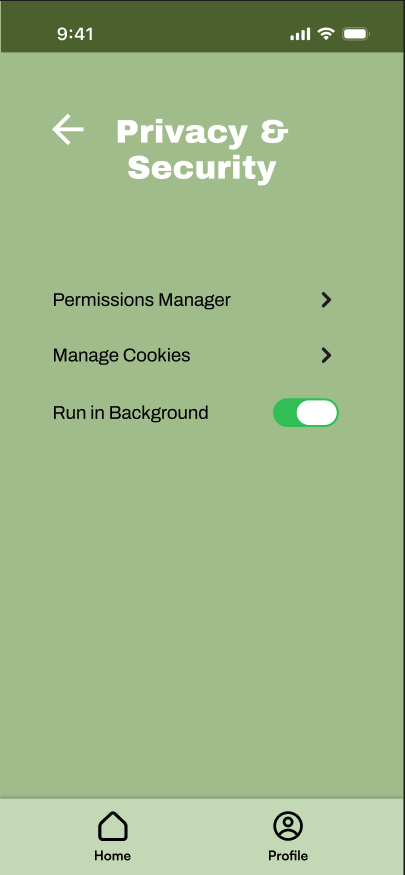
The final screens translate research, strategy, and iteration into a cohesive experience designed to feel intuitive and dependable.
Restraint matters
This project reinforced that good design is often about removing, not adding. The more we simplified and organized, the clearer the system became.
Structure builds trust
When patterns stay consistent, users relax. Clear hierarchy and predictable behavior made the experience feel stable and dependable.
Clarity over clever
Fancy solutions weren’t the answer. Straightforward labels, familiar controls, and logical grouping did more for usability than anything complex ever could.